OuiDire.app — Quick Guide
Follow the quickest path from upload to cards, review, Gemini, and exports.
Follow the quickest path from upload to cards, review, Gemini, and exports.
OuiDire.app — Quick Guide
Where to start
- Your first action: upload a PDF or photos, or use your camera to take photos of paper documents, then automatically get cards by launching Run OCR.
- Once cards exist, use Gemini-powered Overview to get a fast thesis, narrative clusters, key tensions, omissions, and, when several documents are present, inter-document patterns before deeper review.
- Inter-document analysis is a major new payoff: OuiDire can compare material across documents instead of treating every upload as an isolated file.
- After the Overview, use card-by-card annotation and Call Gemini to study the record yourself, build your own understanding, collect review signal, and produce richer metrics and visual maps
- Full Analysis: Both Macro Sets comes later when you want broader machine suggestions across both macro sets and more material for comparison
- Audit, Intake / Map-1 Brite-Lite, Macros Constellation Map, and Human Review Maps become much more useful after several card annotations
Step 1 - Orient yourself at the top of the screen
- Use Glossary when you need the reading frame
- Use Quick Guide when you need the workflow path
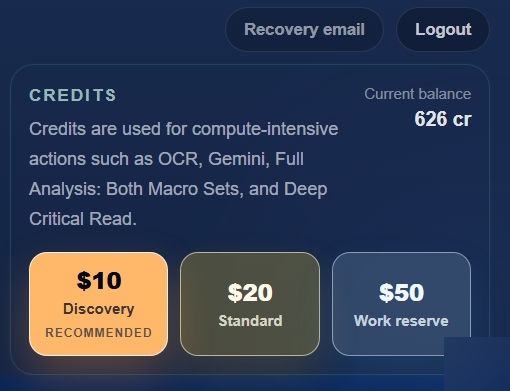
- The Credits section is where you add credits to pay for API calls (OCR, Call Gemini, GPT)
- You do not need to master the whole interface at once
- Your first goal is simple: go from a PDF or photos of paper documents to several annotated cards
Step 2 - Import the document in Ops Center
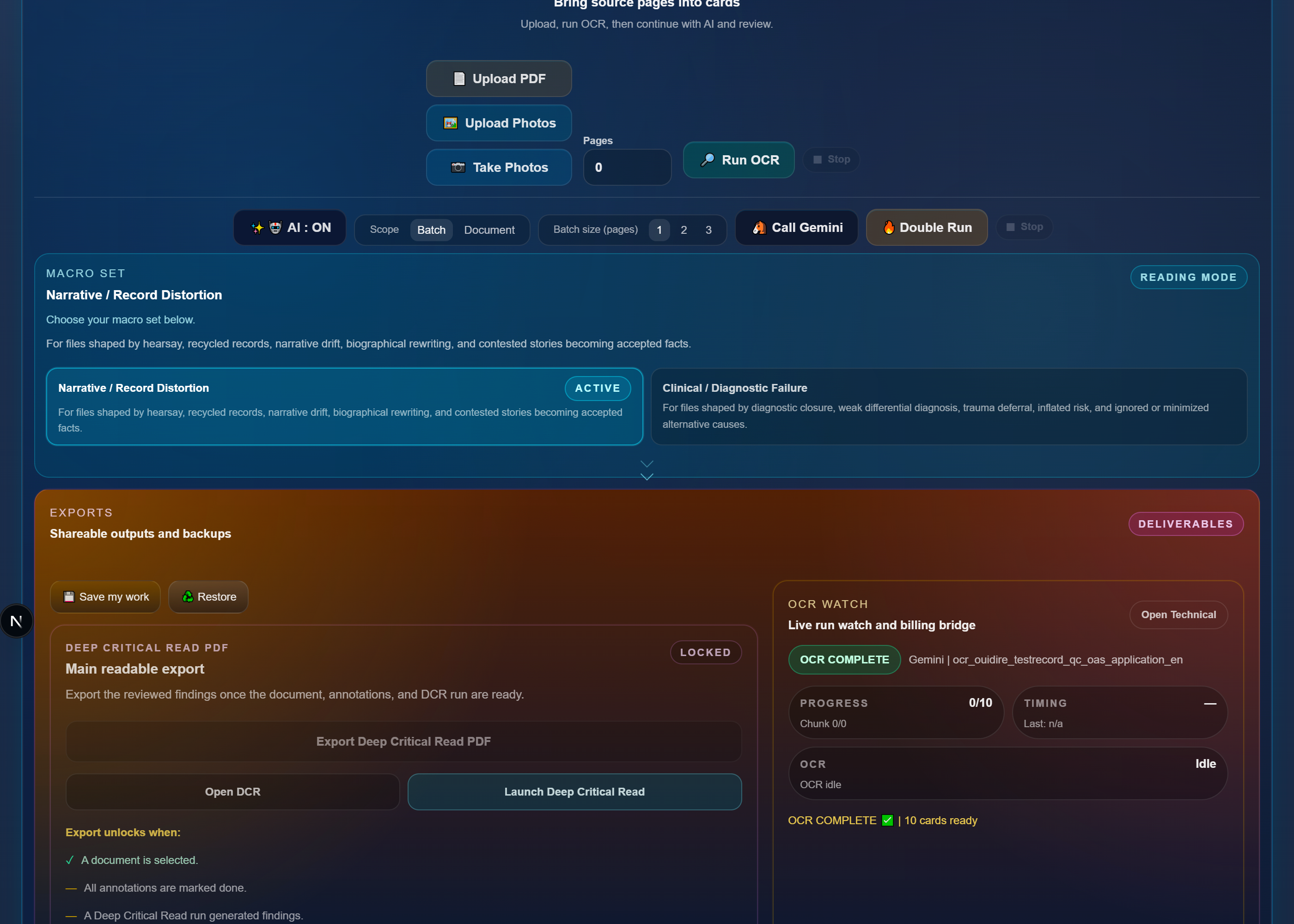
- Upload a PDF
- If you are working from paper documents, you can also Upload Photos already saved on the device
- If you are working from paper documents, use photos or scans before launching OCR
- Treat this area as the entry door
- If you start from a scanned document, this is always the right first move
- Until the PDF is properly inside the app, the rest of the interface will feel abstract
Step 3 - Turn the PDF into cards
- When you upload, the page count is calculated automatically
- Then run OCR
- OCR turns source pages into usable Studiorium cards
- The interface shows OCR progress and then makes the resulting cards available for Overview and review
- Until cards exist, there is no stable base for Overview, metrics, maps, or AI review
- If cards already exist, generate an Overview first when you want thesis material; then use card annotation, Call Gemini, or Full Analysis: Both Macro Sets to take ownership of the record and turn the thesis into metrics, maps, and reviewed findings
Step 4 - Generate a strategic Overview
- Overview is the Gemini-powered orientation layer and the fastest way to get useful thesis material
- It can generate a thesis, narrative clusters, clinical clusters, key tensions, and critical omissions in seconds
- On multi-document files, Overview can surface inter-document patterns: repeated claims, changes in framing, contradictions between documents, and missing links across the record
- This matters because psychiatric files often become powerful through repetition across documents, not through a single sentence in one page
- Use Fast when you want a quick legal-procedure-oriented sample
- Use Extended when you want a broader sample; it is still a sample, not a complete analysis of every card
- The selection controls let you emphasize spread, dense signals, recent endings, starting context, or your own combo
- Treat the Overview as a map of what to inspect next, not as final proof
Step 5 - Choose the reading mode
- The Macro set controls the active 8 macros
- The Macro set is a reading decision based on your case file
- The Macro set changes the reading grid
- For now, there are two non-exclusive choices: one more narrative set, and one more clinical set
- You can run both sets one after the other
- After the Overview gives you the thesis and clusters, choose the macro set that best fits how you want to study the record yourself
- Use Call Gemini to enrich your card-by-card reading inside the active macro set
- Use Full Analysis: Both Macro Sets if you want to compare both macro sets and generate more card-level material for metrics, visual maps, and later synthesis
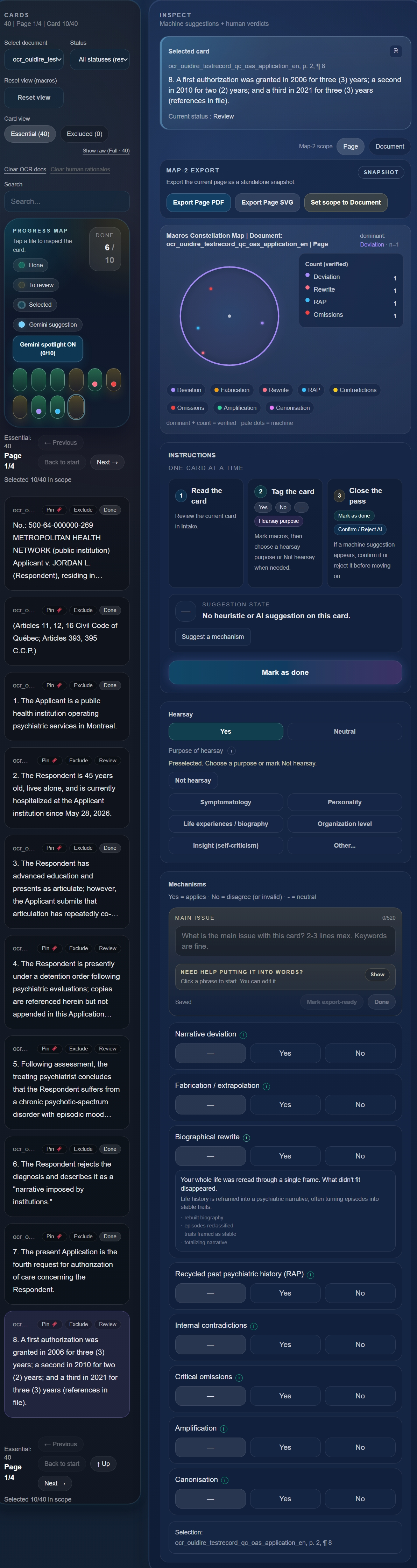
Step 6 - Review the current card
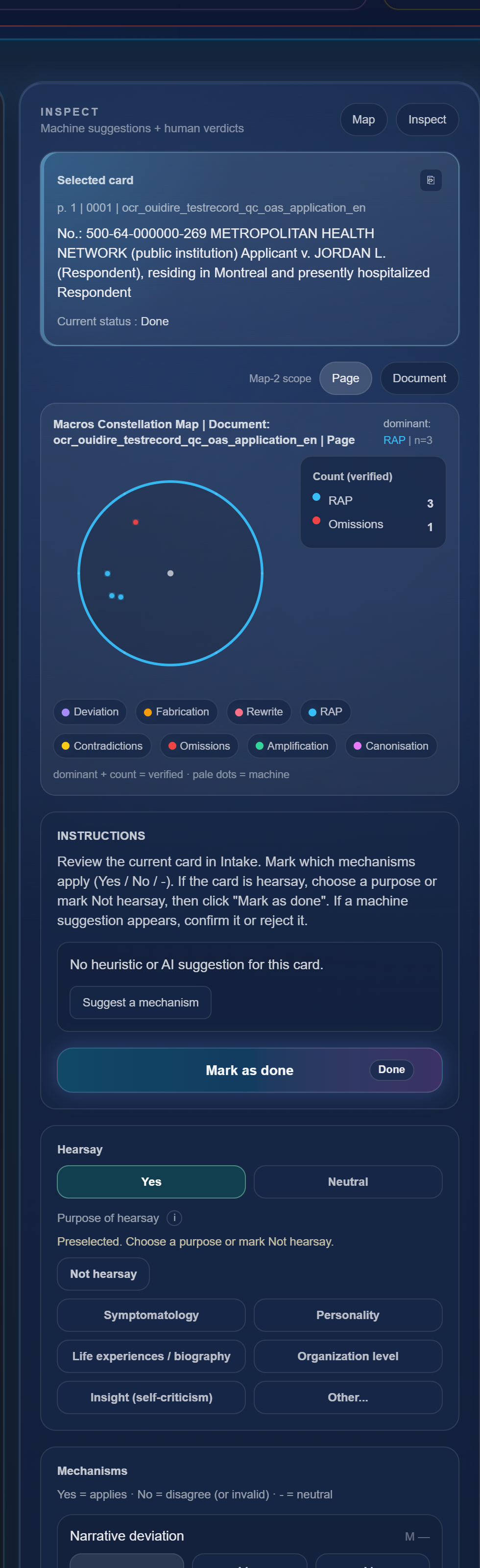
- Use Focus Mode when you want to concentrate on the current card and annotation controls
- Use Big View when you want the full workspace back: Intake, Audit, maps, deliverables, and navigation together
- Read the active card
- For hearsay, choose every purpose of hearsay that applies
- If the card is not hearsay, mark Not hearsay
- For Macros, mark the macros from the active set as Yes / No / — based on what applies on that card
- Review machine suggestions if they exist
- Confirm or reject machine suggestions when they help
- Mark the card as done
- This is the central work of the app
Step 7 - Choose between Call Gemini and Full Analysis: Both Macro Sets
- Before launching the run, choose the Scope
- In Batch mode, you can analyze 1, 2, or 3 pages at a time; in Document mode, you run the analysis on the full document
- The wider the scope, the more compute it uses and the slightly more it costs
- Call Gemini runs Gemini on the current macro set to surface more suggestions in that mode
- Full Analysis: Both Macro Sets runs Gemini on both macro sets, then gathers the results in Gemini Digest card by card
- Use Full Analysis: Both Macro Sets when you want to compare two readings or surface even more suggestions
- Both actions require cards to already exist and AI to be on

Step 8 - Save, restore, and share the work
- Save my work downloads a backup of your current session
- The downloaded file uses a name like ouidire_save_...
- You can keep that file to continue later or share it with someone else, for example your lawyer
- Restore reloads a previous backup from that file
- Save my work and Restore let you pick up where you left off or share your annotations through an ouidire_save file
- If you used Gemini Digest card by card, you can also export it as PDF, .txt, or .json
- Gemini Digest card by card shows results, gives access to exports, and lets you jump straight back to the current card
Step 9 - Move from one card to the wider terrain
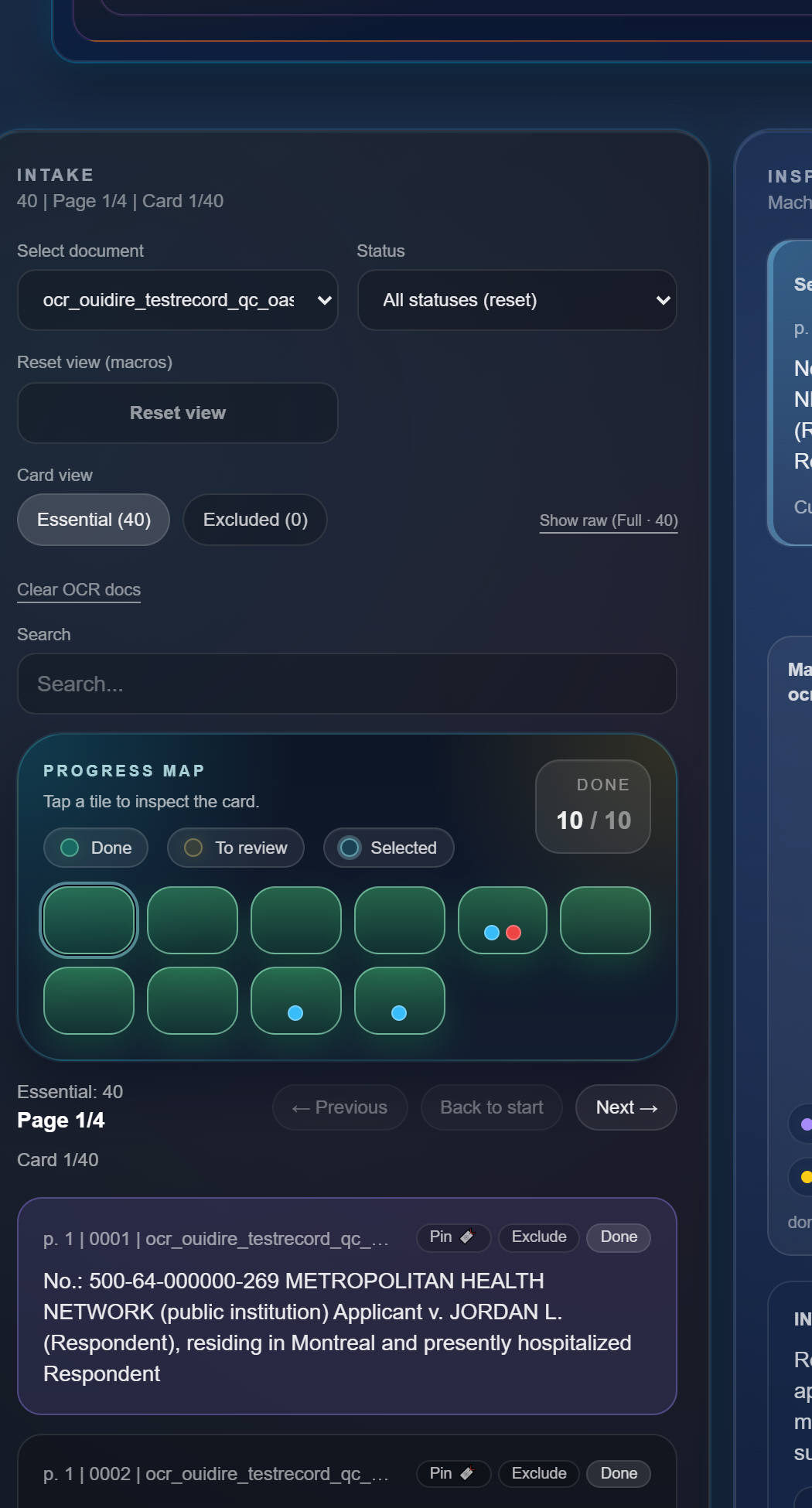
- Intake / Map-1 Brite-Lite acts as a visual reference to track work progression, visualize the other cards with their macros, and open a card by selecting its tile
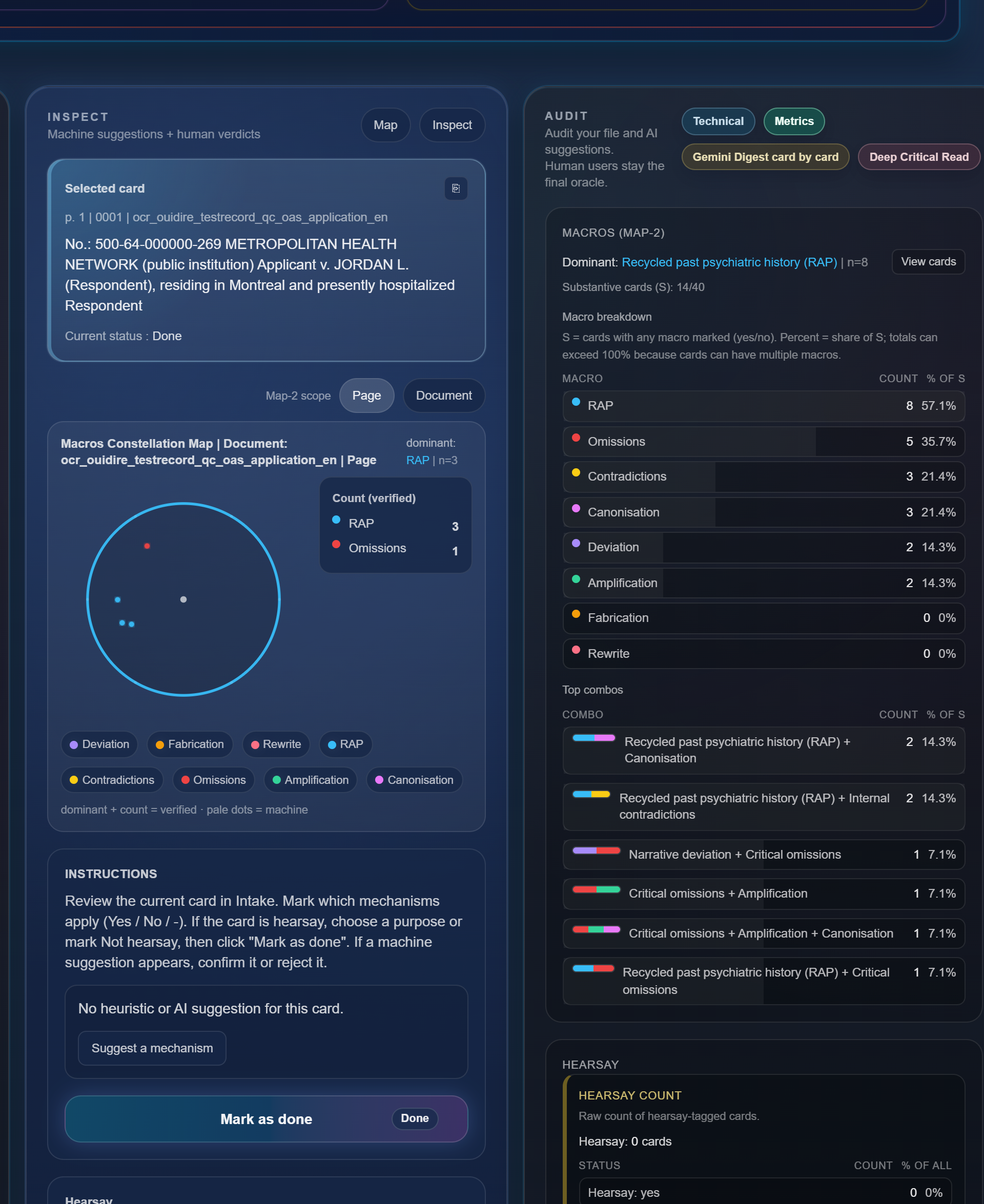
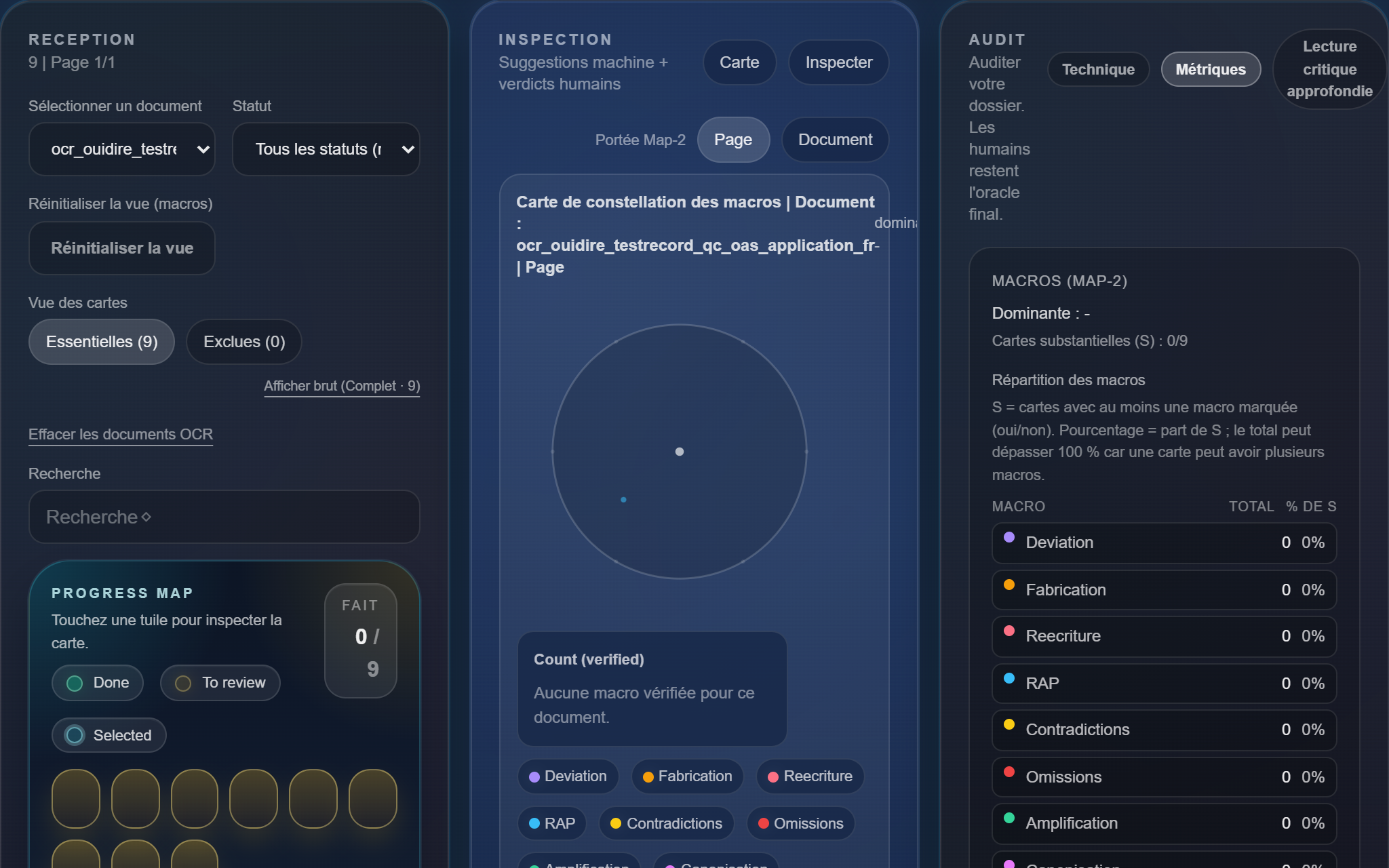
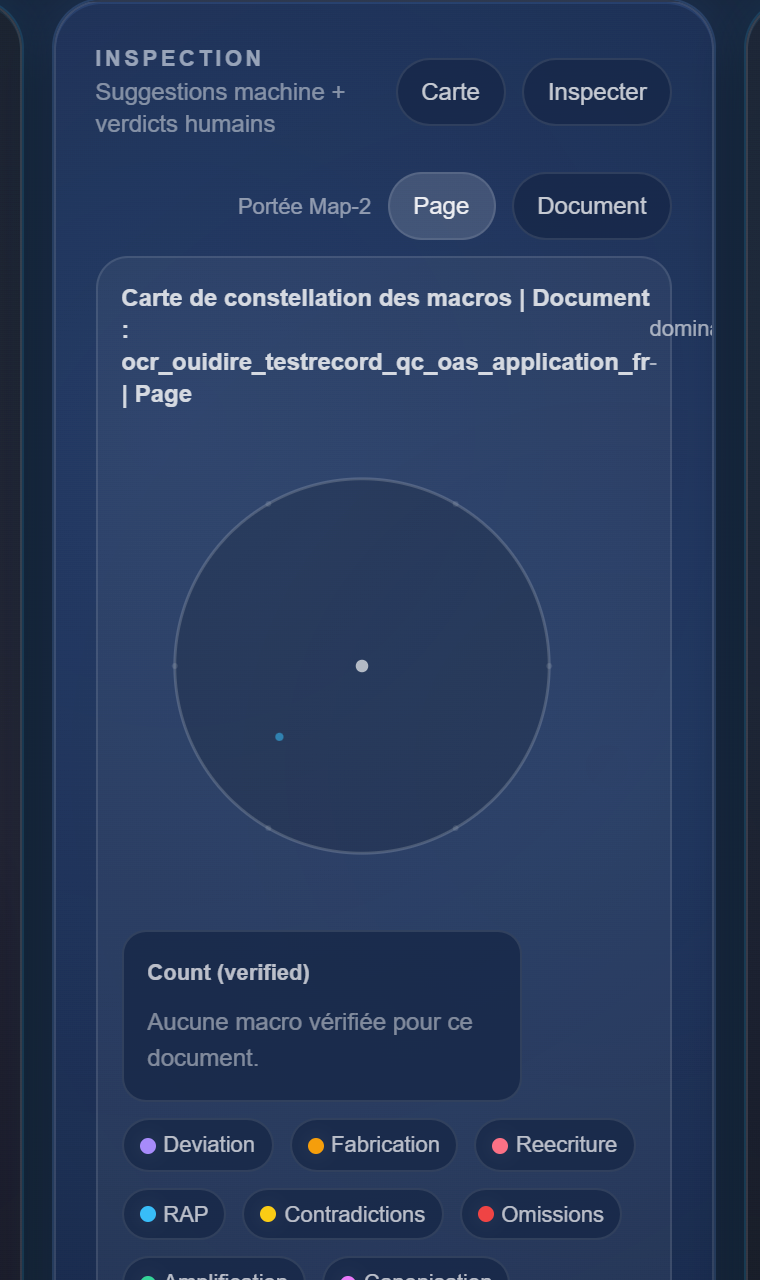
- The Macros Constellation Map (Map-2) is where you see patterns between macros
- Human Review Maps are where you zoom out to the broadest analytical terrain
- Read these areas after several cards have already been reviewed
Fast habits that help users progress
Minimum recommended flow:
- Upload a PDF.
- Run OCR to get your cards.
- Generate a Gemini-powered Overview to get thesis material and inter-document patterns, then verify and enrich it card by card.
- Choose the macro set.
- Annotate the cards yourself or start with AI.
- Use Call Gemini or Full Analysis: Both Macro Sets.
- Save the work or export the Gemini Digest when needed.
- Then check Audit, Metrics, the Macros Constellation Map, or Human Review Maps if you want to go further: the more you advance your annotations, the richer your cards become and the more complete your metrics will be.
- The goal is to annotate every card to get the most out of the app.
Other useful information:
- The Credits section is where you add credits to pay for API calls (OCR, Call Gemini, GPT)
- Login lets you keep your documents and balance from one session to the next
- The Macro set is a reading decision based on your case file
- Gemini-powered Overview orients the review with a capped sample and can compare documents; it does not replace full verification
- For now, there are two non-exclusive choices: one more narrative set, and one more clinical set
- You can run both sets one after the other
- The current card is the one you can annotate
- To appreciate the strengths of AI in OuiDire, use Call Gemini to unlock more proposals in one of the macro sets
- If you want to go further or compare two readings, two macro sets, use Full Analysis: Both Macro Sets to surface many more suggestions
- The Technical section acts as the always-on progress thread during runs or API calls
- Save my work and Restore let you pick up where you left off or share your annotations through an ouidire_save file
- Gemini Digest card by card can become an exportable deliverable in PDF, .txt, or .json
- Audit helps verify the state of the work and follow technical details
- The Macros Constellation Map and Human Review Maps help visualize the patterns, groupings, and analytical terrain emerging from your annotations